星期日, 10月 25, 2020

bootstrap3 網站RWD斷點規畫

 /*========== Mobile First Method ==========*/


/* Custom, iPhone Retina */ 
@media only screen and (min-width : 320px) {

}

/* Extra Small Devices, Phones */ 
@media only screen and (min-width : 480px) {

}

/* Small Devices, Tablets */
@media only screen and (min-width : 768px) {

}

/* Medium Devices, Desktops */
@media only screen and (min-width : 992px) {

}

/* Large Devices, Wide Screens */
@media only screen and (min-width : 1200px) {

}


/*==========  Non-Mobile First Method  ==========*/

/* Large Devices, Wide Screens */
@media only screen and (max-width : 1200px) {

}

/* Medium Devices, Desktops */
@media only screen and (max-width : 992px) {

}

/* Small Devices, Tablets */
@media only screen and (max-width : 768px) {

}

/* Extra Small Devices, Phones */ 
@media only screen and (max-width : 480px) {

}

/* Custom, iPhone Retina */ 
@media only screen and (max-width : 320px) {

}

Ref:
https://stackoverflow.com/questions/19592968/bootstrap-3-breakpoints-and-media-queries

星期二, 9月 29, 2020

[jQuery外掛] owlcarousel2支援垂直的應用

利用Owlcarousel2做出垂直的效果,

可以透過css動畫改變滑動的方向

https://owlcarousel2.github.io/OwlCarousel2/demos/animate.html

https://codepen.io/thirdender/pen/aOYyGb

另外有一個貼近客戶需求的外掛RoyalSlider


https://lowercolumbia.edu/_resources/plugins/royal-slider/templates/video-gallery/


星期三, 6月 24, 2020

[eggplant] 客戶問題: 無法透過RDP連線處理


方法一

To enable RDP connection debug logs:
1.    Create an environment variable in Windows on the EPF machine - WLOG_LEVEL and give it a value DEBUG.
2.    Create a script in EPF that connects to a SUT using its name in the Connection List:
Connect “WIN-DS-EGGPLANT-SC”
Log ConnectionInfo()
Log “Waiting for 30 seconds…”
Wait 30
Disconnect
3.    Run the script in cmd using runscript:
 runscript.bat --commandlineoutput yes C:\CodeRepository\Suite-1.suite\Scripts\ConnectSmartCardTest.script

4.    Copy the cmd output to a text file.


方法二

The RDP DLLs that come with the newer versions of Eggplant Functional are different from the ones that come with version 18. There are some security restrictions on the SUT machines that do not allow the connection from EPF.
To try to overcome this, please try the following:

Try entering the hostname of the SUT instead of its IP address and see if it makes a difference. If not, try the following:
1. Quit Eggplant Functional.
2. Open a cmd prompt and go to the EPF installation directory.
3. Enter the following command:
defaults write Eggplant -rdpNlaSecurity NO
4. Open EPF again and try to connect.
5. If that doesn't help, quit EPF again and try the following command:
defaults write Eggplant rdpRdpSecurity NO

星期五, 5月 22, 2020

[Flickr] 圖片網址無法讀取410錯誤

今天發現Flickr的圖片連結在Blog的圖片顯示異常,


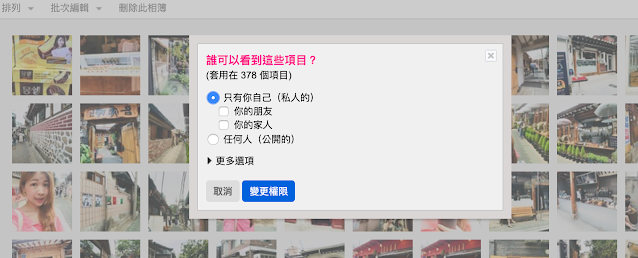
最後查了一下原來是先前相本的權限有變更私人瀏覽
如下圖所示


導致先前的圖片網址最後一段的secret碼會變動
(先前有試過剛發佈文章在關相本權限是可以正常瀏覽的),
所以就要透過flickr flickr.photos.getInfo的API來查詢相片的相關資訊,

在回傳json裡面有secret,把它取代回去失效的網址即可回覆正常。
所以還是不要亂動相本的權限,每次變動secret碼會變動的。

有興趣的可以看以下flickr的技術文件。差不多十年以上沒變更了。
不知什麼時候會倒~誤

相片來源 URL

知道相片的 ID、伺服器 ID、農場 ID 和密鑰(如許多 API 方法返回的那樣)後,你便可構建連結至相片的來源 URL。
URL 會採用以下格式:
https://farm{farm-id}.staticflickr.com/{server-id}/{id}_{secret}.jpg
 or
https://farm{farm-id}.staticflickr.com/{server-id}/{id}_{secret}_[mstzb].jpg
 or
https://farm{farm-id}.staticflickr.com/{server-id}/{id}_{o-secret}_o.(jpg|gif|png)
* 2011 年 11 月 18 日前,API 傳回的圖片 URL 帶有以下主機名稱: 「farm{farm-id}.static.flickr.com」。 目前仍支援這些 URL。

後綴分類

字母後綴如下:
s小正方形 75x75
qlarge square 150x150
t縮圖,最長邊為 100
m小,最長邊為 240
nsmall, 320 on longest side
-中等,最長邊為 500
z中等尺寸 640,最長邊為 640
c中等尺寸 800,最長邊為 800†
b大尺寸,最長邊為 1024*
h大型 1600,長邊 1600†
k大型 2048,長邊 2048†
o原始圖片, 根據來源格式可以是 jpg、gif 或 png
*2010 年 5 月 25 日之前,大相片僅適用於特別大的原始圖片。
† 中型 800、大型 1600 和大型 2048 相片僅存在於 2012 年 3 月 1 日之後。
注意︰原始相片會有些許不同。他們有自己的密鑰(在回覆中稱為 originalsecret)和變數副檔名(在回覆中稱為 originalformat)。僅當呼叫程式具有檢視原始尺寸的權限(取決於使用者偏好和其他各種標準)時,透過 API 傳回這些值。這些值由 flickr.photos.getInfo 方法和諸如 flickr.photos.search 等可傳回相片清單並允許 extras 參數(具有值 original_format)的所有方法來傳回。flickr.photos.getSizes 方法總是會傳回允許權限的完整的原始 URL。

範例

https://farm1.staticflickr.com/2/1418878_1e92283336_m.jpg

farm-id: 1
server-id: 2
photo-id: 1418878
secret: 1e92283336
size: m

星期一, 5月 18, 2020

[eggplant] IE webdrive無法連線

IE webdrive第一次連線失敗發生以下訊息

Protected Mode settings are not the same for all zones. Enable Protected Mode must be set to the same value (enabled or disabled) for all zones. (WARNING: The server did not provide any stacktrace information).

修正安全性設定即可修正問題


將每一個選項內的啟用受保護程式的checkbox打勾
IE網際網路選項


接著再重新連接一次裝置即可正常

星期三, 4月 29, 2020

直接開啟Xcode的模擬器

很多時候需要開模擬器來測試客戶用不同裝置的瀏覽狀況,
這時候可以從cmdline直接下以下指令比較方便

open -a Simulator.app

星期四, 4月 23, 2020

[Eggplant] 透過命令行的runscript指令來執行suite的測試

在透過EPF撰寫完相關的suite後,在不同主機上執行suite,就不用再開EPF了。
只要透過runscript指令即可呼叫。

首先先安裝runscript指令(這樣就免除需要執行完整的路徑)


Important: For Mac installations of Eggplant Functional version 18.0 and later, the path to call the runscript command has changed to /Applications/Eggplant.app/Contents/MacOS/runscript

Eggplat->Perference->Run,接著按install runscript in /usr/local/bin即可


[Eggplant] 使用shell指令執行Java Jar

測試如何shell執行java包出的jar檔應用,並把執行結果取出。

測試一般jar檔執行

MacBook-Pro-8:eggplant_cmd bigd$ java -cp JarDemo.jar com.test.jardemo.TestJar "Hello World" "Ken"

輸入參數0:Hello World

輸入參數1:Ken


//存放shell輸出的東西
set destinationFile to "/Users/bigd/Downloads/shellOutput.txt"

//Users/bigd/Downloads/eggplant_cmd
shell "java -cp /Users/bigd/Downloads/eggplant_cmd/JarDemo.jar com.test.jardemo.TestJar 'Hello World' 'Ken' >"  & destinationFile

put file destinationFile into shellOutput
//LogSuccess file destinationFile
log shellOutput

//砍掉檔案
delete file destinationFile


參考

星期六, 2月 15, 2020

[Vscode] Beautify 如何自訂快捷鍵

剛裝了vscode,寫前端立馬找了Beautify套件。
但為了設快捷鍵找了一會,順便筆記一下

我用的是mac的vscode,以下記錄一下自訂流程

星期三, 1月 08, 2020

[Eggplant] shell cmd 執行window batch

簡單的呼叫bat檔的測試案例,並可將bat的執行結果輸出在txt檔上

(*
http://docs.testplant.com/ePF/SenseTalk/stk-system-interaction.htm#shell
*)

//set the shellCommand to "ShellExecute"

//run bat 
shell "c:\windows\system32\cmd.exe", <
> ">C:\Users\bigd\Downloads\ShellOutpoutFile.txt"

//read bat result from output file
put file "C:\Users\bigd\Downloads\ShellOutpoutFile.txt" into ShellLog

//print outputfile info
log "Shell content from TxtFile"

log ShellLog

http://docs.testplant.com/ePF/SenseTalk/stk-system-interaction.htm

[Eggplant] 【進階範例】SUT斷線重新連結

星期二, 1月 07, 2020

[Eggplant] Android Gateway | android rotate指令


--force-rotForces SN2 to rotate the image. Prior to Android 6.0, the image that came from Android OS to SN2 was not rotated, and SN2 had to rotate it, so it would appeared readable in Eggplant Functional. In Android 6.0 and later, SN2 receives an already rotated image. This option forces SN2 to rotate images even on Android 6.0 and later. This option is implemented in case some devices do not have this updated behavior.
--screen-rot 0
--screen-rot 1
--screen-rot 2
--screen-rot 3
Turns the screen by 0, 90, 180, or 270 degrees, respectively.

http://docs.testplant.com/ePF/using/epf-android-gateway-options.htm

[Eggplant] 跨平台裝置測試如何提升圖片搜尋率

跨平台裝置常會測試案例的圖相(例如按鈕大小)遇到不同解析度會有放大的問題?
可以透過以下方法,就不需要依據每個SUT受測裝置擷過過多圖片。


1. Search Type設成Adaptive To Image

2.  設定Scale Factor去比對不同解析度的圖像=>可先透過測試指定比例

 2.1  可在EPF settings裡面設定參數

 2.2 程式控制
//愈細則會增加搜尋時間
set the scaleFactors to 0.5 to 1 step 0.01

更多scaleFactors設定可參考以下連結
http://docs.testplant.com/ePF/SenseTalk/stk-eggplant-functional-global-properties.htm


3. 調Image設定的Tolerance

備註:如何打開hidden的圖像識別
Show all search types

[Eggplant] 客戶問題:Windows手動安裝selenium伺服器與Java環境

先前在客戶端安裝eggplant官方的window selenium安裝包
發現在執行webdrive指令會發生異常的錯誤,
發現手動重新安裝就可以解決這個問題。


Java環境設定

下載JRE
https://www.oracle.com/technetwork/java/javase/downloads/jre8-downloads-2133155.html

安裝完後會在此目錄下看到執行的java.exe
C:\Program Files\Java\jre1.8.0_231\bin

接著設定環境變數,才有辦法直接在cmdline的路徑下都打java指令

星期一, 1月 06, 2020

[Eggplant] 客戶問題: Number of Errors logged: 183

有趣的客戶案例:
將多個測試腳本拆開後,再分開使用run指令呼叫各部份的測試腳本,
因在單自的腳本裡有寫LogError來印LOG,
就會造成此錯誤訊息Number of Errors logged
造成最外層想要做一個long run的廻圈無法正確執行。
解決方法將LogError改成LogWarning即可,
因使用LogError如發生錯誤不會在中間的腳本停掉程序的


補充:

Run:可以用在順序的腳本執行,簡單來說就是每一個腳本中間是有相關聯的,
因此異常就會中斷整個測試集

RunWithNewResult: 就不會因其中一個錯誤腳本而中斷。


星期一, 11月 11, 2019

[Eggplant] 【進階語法】ScreenPart提昇你的OCR的辨識速度

等你熟悉了eggplant的圖片/OCR識別的使用後,
如果想要再提昇速度,可以在每次搜尋目標時,
定義搜尋的區塊(searchRectangle )
可以加速整個Script的執行

定義ScreenPart函數

請在你的suite裡新增一個script,命名為ScreenPart檔名,接著貼以下的程式碼

[Eggplant] 使用eggplant functional連結Selenium進行自動化測試(三):取得網頁Table的數值,以wiki百科為例

主要使用Selenium來讀取表格的內容,
進行自動化測試會比使用圖片識別更來的單純,
這個範例是分析wiki百科內的這個表格。


取得元素WebElement Identifiers

類似jquery的選擇器,提供多種方法讓你找到網頁上的元素

元素物件WebElement Objects

當找到元素後你會獲得一個WebElement物件,可以協助你萃取元素的資訊

待補...

[Eggplant] 使用eggplant functional連結Selenium進行自動化測試: 安裝於windows

如果有參考先前mac的教學做過一遍的話,
那使用window的客戶就更單純了~真是幸福呀!箊
只要到eggplant下載官方的WebDriverServerSetup.exe安裝包(安裝精靈),
一步接一步就會安裝完,Selenium Server了,不過WebDriver也是要另外下載(參考先前的文章)。

下載資訊

https://www.eggplantsoftware.com/eggplant-functional-downloads

懶到到官網下載頁面的話請至以下連結
http://downloads.testplant.com/downloads/WebDriverServerSetup.exe

安裝完後要啟動在windows的選單就可以發現啦:D

星期日, 11月 03, 2019

[Eggplant] 使用eggplant functional連結Selenium進行自動化測試(二):建立連線

繼上一篇架設環境後,我逐一來說明如何建立連線。
PS:此文章內容已包含所需的環境建置

啟動你的Selenium Server

如已啟動可以忽略此步驟

 selenium-server -port 4444

建立一個新的連線

打開eggplant functional且打開connection list
這個連線就是連接你電腦安裝的selenium,
預設的port為4444,
Connection Type請選擇為WebDriver


其他你感興趣的文章

Related Posts with Thumbnails